


Before your artwork hits the press, one step determines whether it succeeds or becomes an expensive disaster. Preflight catches errors when fixing them costs pennies instead of thousands, turning potential chaos into smooth production runs.
What is Preflight in Printing?
Preflight printing is the quality-check step that happens before any job reaches the press. It reviews your digital files for the details that can make or break production, including fonts, colors, registration, image resolution, dielines and layout setup. The term originates from aviation, where pilots perform preflight checks to avoid mid-flight problems. Consultant Chuck Weger first brought the idea into the printing industry in 1990, comparing press preparation to flight safety. Around the same time, industry experts such as Professor Ron Bertolina were developing structured preflight workflows that shaped modern prepress practices. Preflight examines everything from image resolution and color management to fonts and the correct file format, ensuring your completed job files match what a commercial printer needs for production.
This standard prepress procedure became critical as desktop publishing apps shifted control from specialized prepress technicians to designers who may not know printing mechanics. Files that look perfect on screen fail spectacularly at the press when technical specifications don't align with production requirements. Preflight catches these gaps before they become expensive problems, transforming uncertainty into confidence when sending files to print.
The History and Evolution of Preflighting
Before digital workflows, most pre press departments relied on skilled technicians who checked film separations, color overlays, and plate layouts by hand. It was detailed, hands-on work that took time and experience, and mistakes found late could cost thousands once the presses were running.
That changed in the mid-1980s with Aldus PageMaker and Apple’s LaserWriter. Suddenly, designers could build print ready layouts on screen without needing to understand the mechanics of the printing process. What looked perfect digitally often failed in production, and prepress teams found themselves fixing more files than ever before. To troubleshoot, teams sometimes borrowed printers from the floor to test jobs before full runs. It was a stopgap solution that couldn’t scale once file volumes began to grow.
Software developers soon stepped in. Early automated systems began scanning digital files for potential errors such as missing fonts or incorrect color modes, evolving into the sophisticated preflighting process used today. Modern preflight tools now check hundreds of details in seconds. They pair algorithmic accuracy with human review to catch costly errors before print production even starts.
Why Preflight is Essential for Print Success
Unlike digital content you can update instantly, printed materials can't be patched or revised once they leave the press. That permanence makes preflight the difference between catching fixable problems and absorbing losses that hit budgets hard while derailing timelines and compromising quality standards.
Financial protection
A missing bleed discovered after thousands of copies roll off the press means scrapping the entire run and starting over. Companies have lost tens of thousands of dollars reprinting materials with labeling errors that preflight would have caught in seconds.
Timeline insurance
Discovering problems after sending files to the printer adds days or weeks to production schedules while issues get resolved. Your trade show booth or product launch won't wait while you reprint materials. Teams that skip preflight hoping to save time lose far more when errors surface during production.
Quality assurance
Low resolution images that seem acceptable on a monitor turn pixelated at press size. Colors that look vibrant in RGB convert poorly to CMYK, producing muddy results. Preflight catches these disconnects between digital creation and physical production, ensuring your final product matches your vision rather than disappointing when it's too late to fix.
The Complete Preflight Process Explained
Preflight happens at the moment designers believe their files are ready for production. That confidence gets tested immediately when preflight software scans every element against technical specifications.
Step 1: Automated scanning catches the obvious problems. Software checks image resolution, verifies color settings, and confirms font embedding, flagging deviations with detailed reports. This automated pass handles most technical verification quickly and consistently.
Step 2: Human review handles what requires judgment. Prepress technicians examine the flagged issues to decide what actually needs fixing. Crop marks get verified for proper alignment. Important details get checked to ensure they remain visible within safe zones. Page layouts get confirmed against intended dimensions. This layer catches nuances that automated systems miss while confirming that flagged issues actually matter for production.
Step 3: Communication between teams completes the correct process. Designers work with prepress staff and print production teams to resolve identified problems efficiently. Documentation tracks what was checked, which problems appeared, and how fixes were implemented. This creates accountability while building knowledge that stops the same mistakes from happening again.
Common Issues Detected During Preflight
Images pulled from websites or resized in layout software rarely have enough detail for quality printing. A file that looks sharp on screen at 72 DPI often falls apart at press size, where 300 DPI is the standard. Preflight flags those low-resolution images right away, saving time and avoiding fuzzy results that undermine professional work.
Color settings cause their own problems. Designers sometimes build in RGB, the color space meant for screens, and forget that most print systems still expect CMYK. The two translate color differently, so what looks right on a monitor can shift once it’s on paper, even with well-prepared files and modern digital workflows. Spot colors also need dedicated setup to print correctly, and preflight identifies these mismatches before they cause unwanted conversion or dull results. Bleed, margin, and trim settings may seem basic, yet they account for many preventable printing errors.
Missing bleed leaves thin white edges, while details placed too close to the margin risk being cut off, and text that crosses a fold line can disappear or become difficult to read once assembled. Preflight confirms that layouts follow physical limits and flags problems before they affect an otherwise polished design. While automated preflight handles the technical checks, it can’t catch everything by sight. A slightly shifted text block, a misplaced graphic, or a subtle color drift might still go unnoticed without manual review. In regulated labels and packaging, where both visual accuracy and compliance are critical, human inspection helps close the gap that rule-based checking can’t always cover.
Font Management in Preflighting
When layout software can't find a font used in your design, it substitutes something similar (rarely with good results). These substitutions change text flow while altering line breaks, sometimes making content illegible. Typography that looked carefully balanced in your layout suddenly reflows across pages, pushing content into wrong positions or creating awkward spacing. In regulated fields such as pharmaceuticals, even small font substitutions during printing can cause errors that break compliance requirements. A changed typeface might alter the size of a warning line or shift text just enough to violate FDA labeling regulations. Even for non-regulated materials, font substitutions undermine brand consistency when your carefully chosen typeface gets replaced with whatever the print system finds closest.
Embedding fonts correctly solves this problem by including complete font data within your file. Most design applications offer embedding options, but designers must activate them intentionally. Preflight verifies fonts are embedded properly, ensuring the desired type appears identically on any system and any printer.
Special typefaces and text effects require extra attention during preflighting. Decorative fonts with custom letterspacing or elaborate text treatments sometimes embed incompletely or rely on features that translate poorly to print. Preflight spots these edge cases before production begins, flagging font issues that might not appear until after the job is printed.
Color Management and Spot Colors
Color accuracy is what separates amateur work from professional printing. In production, color profiles guide how hues move from screen to press so brand tones stay true. When those profiles are missing or mismatched, colors can shift without warning. Bright blues may dull, and key brand shades can lose their precision. Preflight checks that your files use the right profiles for the printing method, preventing those surprises before they reach the press. Spot colors behave differently from standard CMYK. These premixed inks print in separate runs to match exact Pantone values, giving brands the consistency they expect across every piece. Preflight verifies spot colors are set up correctly, catching problems before they accidentally convert to CMYK or print as the wrong shade.
Converting from RGB to CMYK reveals which colors won't survive the transition. Rich colors that exist on screens often fall outside what CMYK can reproduce. Preflight surfaces these issues while you can still adjust colors intentionally instead of discovering the problem when printed materials arrive looking wrong.
Identifying and Resolving Missing Assets
In most design software, images aren’t always embedded. They’re often linked to keep file sizes small, but that setup can backfire fast. Move or rename a linked image, and the document can’t find it anymore. Preflight spots those missing links before files reach production, catching broken references that would stop printing in its tracks. Embedded graphics prevent this problem entirely by incorporating image data directly into documents. Files get larger, but nothing can disappear. When preparing final production files, embedding removes the risk that a misplaced image derails your deadline.
Proper asset organization stops most missing file problems before they start. Gather your fonts and images into one folder structure when packaging files for production. Most design applications include package functions that collect everything automatically. Run preflight after packaging to confirm nothing got missed.
Size, Scale, and Document Specifications
Mismatched document dimensions kill projects before production even starts. Letter-sized files won't work on tabloid paper, and portrait layouts fail when production expects landscape specifications.
Scaling hides quality problems until it's too late. Images that are stretched beyond their original resolution quickly lose clarity and become pixelated. Text or graphics scaled too far from their source size can behave unpredictably at press, especially when transparency or shadow effects are in play. What looks fine on screen often fails once it’s enlarged to full print dimensions. Preflight catches these scaling problems before they hurt print quality.
Identical files can look surprisingly different once paper stock comes into play. Heavier papers absorb ink at a slower rate than lightweight ones, which changes how colors appear. Coated sheets usually produce brighter, more saturated results, while uncoated stocks soften tones and reduce contrast. Preflight surfaces these mismatches when file preparation doesn't align with the intended paper. A file optimized for glossy coated stock will disappoint on matte uncoated paper.
Adobe Software Preflight Tools
Most design workflows live in Adobe's Creative Suite, which means preflight happens across multiple applications. Each tool catches different problems at different stages, and knowing which to use when prevents issues from slipping through.
Run InDesign preflight as you design, then validate PDF files in Acrobat and review source images in Photoshop. These checks also support smooth handoff into systems like Esko Automation Engine or Hybrid CLOUDFLOW.
Creating an Effective Preflight Checklist
Build your preflight checklist around what actually matters for your printing projects, not generic templates that miss critical details. Start with core requirements that apply everywhere, then add the specifics your work demands.
Essential preflight checklist items:
☐ Resolution: Images typically at 300 DPI for most print applications (large format uses lower DPI based on viewing distance; confirm requirements with your printer)
☐ Color modes: CMYK for process printing, spot colors properly defined with accurate Pantone specifications
☐ Fonts: Every font embedded or outlined with no substitutions allowed
☐ Bleed: Minimum 0.125" bleed on any edge extending to trim (confirm with your printer)
☐ Margins: Critical content at least 0.25" inside trim to prevent cut-off (some projects require more)
☐ Page dimensions: Document size matches production specs exactly
☐ Linked assets: All images and graphics either embedded or collected in your package folder
☐ Color profiles: Correct ICC profiles assigned for your printing method and paper stock
☐ Project-specific items: Barcode verification for packaging, regulatory text compliance for pharma, die-cut accuracy for custom shapes
Tailor this checklist to fit the kind of work you actually do. A magazine workflow might include checks for consistent specs across signatures. Packaging teams often add barcode scanning steps or confirm regulatory compliance details along the way. For large-format printing, it helps to monitor file size management so the RIP runs smoothly. Whatever you adjust, make a record of it. Note what you checked, where issues appeared, and how you solved them. That record becomes your safety net against repeating mistakes and the fastest way to train anyone new on your team.
Printer Compatibility Considerations
Every commercial printer has preferences for how they want files delivered, and those preferences directly impact how you should prepare your work. Some want pdf files formatted to specific standards while others prefer native InDesign packages. Offset printing needs precise specifications, particularly for dot gain along with ink coverage and trapping requirements. Talk to your print vendor before design work begins, not when you're ready to send files. Here are a few points to clarify with your vendor:
- What resolution they need
- How they handle color management
- Whether their equipment has special requirements
Most printers provide specification sheets covering technical details, but a conversation upfront prevents you from building files their systems can't handle. Trying to retrofit compatibility during preflight wastes everyone's time and sometimes means starting over from scratch.
Proofing validates what preflight checks. A soft proof viewed on a calibrated monitor simulates press output, while a hard proof uses actual production method for a small test run. Both help catch problems that only appear under real printing conditions. Some issues still slip past specifications, such as subtle color shifts or transparency flattening that looks fine on screen but fails at press. Even trim alignment can seem correct in theory yet create surprises once the job is in production.
Troubleshooting Common Preflight Errors
Preflight flags problems, but fixing them requires understanding what actually went wrong. The error message tells you the symptom. Your job is figuring out the cause and whether to fix the source file or adjust how you're checking it.
The error doesn't make sense or seems wrong
Start by understanding what the flag actually means. A "missing font" error might stem from incorrect embedding or a renamed font file. Sometimes it's a substitution that happened during editing, so dig into the specifics before assuming the preflight software made a mistake. Most flags point to real problems, even when they seem off at first glance.
Should I override the preflight warning or fix the file?
Fix the source file rather than overriding warnings. Overrides bypass the safety check without solving the underlying problem, which means the issue still exists even if preflight stops complaining about it. Resolution problems need replacement images with proper DPI. Color issues require correct conversion in your design application. Font problems demand proper embedding at the source. These fixes address root causes instead of just silencing the alerts that protect your print quality.
The problem is too complex or technical for me to solve
Transparency flattening issues can stump even experienced designers, while color profile conflicts get technical fast and PDF generation problems sometimes require specialized knowledge. Spending hours fighting technical problems you don't understand wastes time and delays projects. Get help from someone who knows the software and printing process instead of struggling alone. Recognizing your limits keeps work moving forward.
Which tools help resolve specific preflight problems?
Different problem types need different solutions. Acrobat handles most PDF issues through its built-in repair functions, while InDesign or Illustrator work best when fonts need re-embedding or outlining. Photoshop fixes image resolution and color problems before you place files into layouts, though some color profile issues need specialized color management software beyond standard design applications. Trying to force one tool to handle every problem type creates more frustration than solutions.
Preflight Best Practices for Different Print Projects
Preflight priorities shift depending on what you're printing. Magazine production demands consistency checks that don't matter for packaging, while large format printing introduces technical considerations that never come up in book work. Understanding these differences prevents you from applying irrelevant standards or missing critical requirements specific to your project type. The same preflight approach doesn't work across every print category.
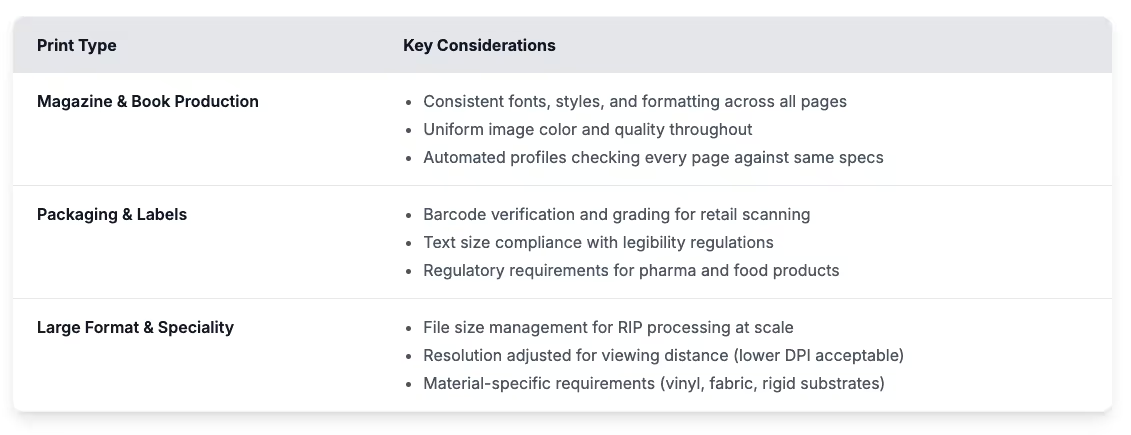
Generic preflight catches generic problems. Project-specific preflight catches the issues that actually ruin your output - the barcode that won't scan, the billboard that looks pixelated from the highway, the book where fonts shift mid-chapter. Adapt your checks to what threatens your specific deliverable.
The Future of Preflight Technologies
Preflight is getting smarter. Modern preflight systems learn from past projects, identifying patterns that signal problems even when individual elements technically pass specifications. This contextual awareness catches issues traditional rules-based checking misses entirely.
What preflight can actually detect is expanding thanks to AI and machine learning. These systems flag when elements are correctly formatted but unlikely to produce the results you want. Color combinations that will muddy during printing get caught before plates are made, while layouts that meet technical requirements but waste paper inefficiently get flagged for review. As AI takes on more analysis work, preflight becomes faster while catching subtler problems that currently slip through. The technology is moving from "does this meet specs" to "will this actually work the way you intend."
Files uploaded to cloud platforms now trigger automated preflight immediately, generating reports that designers and printers can both see right away. This eliminates the back-and-forth of traditional preflight while creating transparency throughout production. As these systems mature, validation is moving directly into design applications, catching issues before files ever reach formal preflight.
GlobalVision’s Verify API complements traditional preflight by automating visual and textual inspections, catching deviations that rule-based preflight might miss. Together, they close the gap between technical compliance and true print accuracy.